Work-Life-Balance

Especially during the current situation with a lot of remote work from home, it is important to save the work life balance of your employees and of course yourself.

1. Stop emailing outside of office hours

Even if you like to work in the evening, the early morning or during your weekend, you might have colleagues or employees who don’t or who just need some energy regeneration for the next day or week. That’s why you should not send them emails outside of office hours.

Most people also tend to “finish” their work before leaving the office for the evening or the weekend and are shuttind down their “work brains” to get some rest. If they receive an email during that time, even if they don’t read it right away, they at least think about it, what costs them energy. They might even feel the need to answer your email as soon as possible, what makes them work instead of getting some rest.

If you have to click the “send” button, use the email scheduling function of outlook to send it automatically at a scheduled time.

That directly brings me to the next point:

2. Keep people from working during the weekends

There will be exceptions of course. There are deadlines to meet and sometimes it’s necessary to do some work during the weekend, but that shouldn’t be more than a couple of times per year.

Your employees should be able to finish their work in friday, so they can start the weekend without worrying about anything. And they shouldn’t receive any emails after leaving the office as those could directly tear them back into their work-life. I can’t imagine many work related things that can’t wait until monday morning. Usually no lifes depend on what your business does.

3. Keep people from working during their vacations

Even worse than working during the weekends is working during vacation. Vacation should be used the regenerate personal energy and you as a manager should take care that your employees take their vacation and especially don’t work during it.

Last but not least:

Everybody is a little different. Some people just like to do some work during the weekend, like small preparations for the start of the week. So instead of sending out rules and punishing people who don’t follow them, talk to the employees about the rules and recommendations.
Microsoft Teams got a free version

Microsoft is pushing their collaboration solution “Teams” further into the market by providing a free version for smaller companies.

Until now, Microsoft Teams was only available for customers owning an Office 365 Business or Enterprise plan. There was no option to get only Teams and skip the other tools like Exchange, SharePoint and OneDrive for Business. In comparison to the competitor Slack, that made Microsoft Teams quite pricy.

With the free option, Microsoft now provides a competitive solution and could get Slack customers to switch to Teams.


Windows and Android working together

Sounds good, does not work? Wrong! It does. With the Microsoft Launcher for Android and the Windows 10 Fall Creators Update.

Prerequisits

To get that working, you need to have Windows 10 Fall Creators Update installed on your PC and the Microsoft Launcher on your Android Phone. The Preview of the Microsoft Launcher was released about a week ago and also the Windows 10 Creators Update got released. You need to be part of the Windows Insider Program to get access to the preview releases. But if you are not part of the Insider Program or don’t dare to install a preview release, you might not have to wait long for the final release of the Microsoft Launcher.

For personal use of the features a personal Office 365 account (outlook.com) is required. You can register an account for free. If you’re using your Android phone for work, you need an Office 365 work or school account.

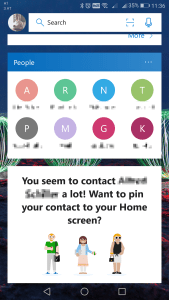
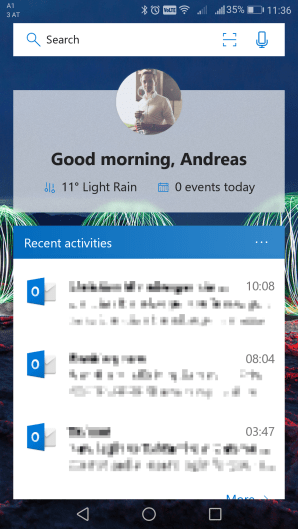
Microsoft LauncherScreenshot_20171008-113602

One of the best features of the Microsoft Launcher is the additional homescreen. Depending on the account you use and your settings, this feed gives you a huge amount of information.


It can show:

  • recent activities whi files, pictures taken with the camera, and e-mails
  • the most used contacts and apps
  • your schedule for the day
  • news (based on selected topics)
  • weather information
  • a To Do section for tasks, which can be synced with Wunderlist, but not with Microsoft ToDo (why?)
  • a notes section


But how do they work together?

After installing both updates, you can find a new section “Phone” in the settings of your Windows 10 device. There you can connect android phones.

After connecting your Android phone with your Windows 10 device, you can see the “continue on pc” button in the recent activity section of the Microsoft Launcher homescreen. Clicking that for a file starts uploading the file to OneDrive and opens the web browser on your Windows 10 computer. From here you can go on and proceed working on the file on your Windows 10.

Conclusion

I very much like the design of the Launcher and can’t wait for my employer to completely move to Office 365 so I can use all of the features. But Microsoft got some great and very innovative ideas.

How to keep track of your working time

If you are working on multiple projects for multiple clients at the same time as I do, you might also think that recording your working hours for each project you are working on is one of these things that cost way too much time.

Especially since I have to record my working time in a not so modern and pretty user unfriendly ERP system, I don’t “enjoy” – that’s not the right word, nobody enjoys that – recording my working time in it. So I usually enter my working time into the system at the end of the week. But that brings up a new problem: I have to note down what I have done, otherwise I won’t know the exact times later.

Since a few months I’m now using toggle.com for my time recording. It not only provides a userfriendly web interface and smartphone apps. It also provides a Windows Desktop App with a mini-timer.

mini timerThe mini timer is a smapp widget which shows a start/stop button and the currently selected project, the title of the entry and the time since starting with it.
desktop

Keeping that timer on top of the desktop doesn’t cost much space and helps enormously to not forget to switch the project when answering a call or a newly received email message.

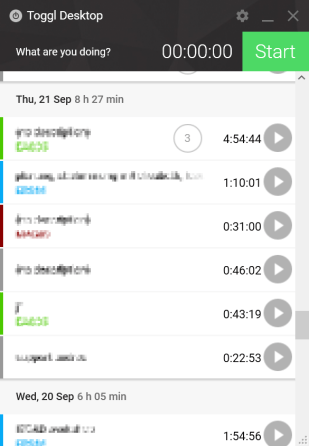
The desktop app shows the same as the mini timer and additionally all tracked tasks in chronological order. For each task, it shows the title, the project (with selected color codes) and the time. It also groups entries which belong to the same task and gives you the option to work on the same task again by justing pressing the “play” button next to the entry.

If you don’t need high amounts of reports, team collaboration and invoicing, the free version of the app might be sufficient for you as well.

If you want to try it yourself:  https://www.toggl.com

SkyDrive vs. SkyDrive Pro

As there is some confusion about SkyDrive and SkyDrive Pro, here are my findings after some tests.

SkyDrive

imageSkyDrive is the consumer online storage service which Microsoft provides for Windows Live users.

Offline Synchronization:

Since 2012 Microsoft provides a simple sync-application to sync your SkyDrive content into a selected folder in your local file system. The SkyDrive client can be easily downloaded from the web.

imageMetro Client:

For the use on tablet pcs using Windows 8, there is a Metro style application for quick and easy touch-enabled access to all of your SkyDrive files. Other than the desktop application, this app doesn’t sync your files for offline use.

SkyDrive Pro

imageSkyDrive Pro is an online service for business users using Office 365 business plans, which include SharePoint Online, or SharePoint Server 2013. SkyDrive Pro is not really a new invention in SharePoint Server 2013. The SkyDrive Pro is only a website with one specific document library which works similar to other document libraries in SharePoint, but is included into the MySite of the user and per default only accessible for that specific user. In the previous version of SharePoint it was called “My Content”, which was a Website, including 2 document libraries for personal and public documents.

Offline Synchronization:

To get your files offline, there is a client application which syncs files of a selected document library into a local folder. This application is called SkyDrive Pro. In earlier versions it was called SharePoint Workspace 2010 and before that it was called Groove. The SkyDrive Pro client, as far as i found out, is included in Microsoft Office 2013 Professional Plus, as its predecessor SharePoint Workspace 2010 was in Office 2010 Professional Plus.

Syncing Files offline without SkyDrive Pro or using the consumer SkyDrive application is not possible. Pressing the sync-Link in SharePoint 2013 without SkyDrive Pro client installed will only give an error “No apps are installed to open this type of link (grvopen)”.

Cloud Storage Comparison

Dropbox vs. Box.com vs. Microsoft SkyDrive vs. Google Drive


For a long time, dropbox was the only cloud storage service to provide a real simple Windows Explorer integration and sync. Non of the other services, like Box.com, Google Docs or Microsoft SkyDrive had something comparable.

Sure, Microsoft SkyDrive had the Windows Live Mesh client, but was it really useable? As it was limited to 5 of the whole 25GB, for me not. Dropbox instead, with its nearly perfect client, was a bit to expensive, as soon as you need more space (50GB sell for 7.50 € per month). Google Docs was at all limited to 1GB space and Box.com provided many space (for a few tablet owners free 50GB) but no client application.

A few days ago, Microsoft and Google launched new versions for their cloud storages.

Microsoft offers now 7GB free storage (still 25GB for users who registered before the 1st of April) and a client which works quite similar to the dropbox client. If you need more space, expansions are much cheaper than for dropbox, 20GB cost only 8€ per year.

Google launched the new service “Drive”, which completely replaces the Google Docs, on the same day. They are providing 5GB of storage and also a client application. Further to the integration into Windows Explorer the client also allows you to select which folders you want to sync between hour PC and Google Drive. Very nice feature for users with only limited space on their hard drive, in times of expensive SSD drives something one might worry about. Further space is a bit more expensive than the SkyDrive space, 25GB cost around 1.90 € (2.49 USD) per month.


Comparison:

Dropbox Box.com Microsoft SkyDrive Google Drive
Free Storage 2GB (more free space for sharing,…) 5GB (more free space for tablet owners, e.g. Sony Tablet S) 7GB (25GB for registered users before 1st April) 5GB
Windows Client yes not free yes yes
Mobile Client yes yes no (no official for Android) yes
Applications none several free, and buyable (in Browser editing, etc.) free online editor for Word, Excel, PowerPoint, OneNote free online editor for Google Docs formats
Price of extra storage 50GB for 7.50 € /month 25Gb for 7.50 € /month 20GB for 8€ /year 25GB for 1.90 € /month


Conclusion:

The services of Microsoft and Google can now, with the new client applications, compete with Dropbox. And with their low prices they try to attack Dropbox. Maybe Dropbox will lower their prices soon too.

With the decreasing prices, Cloud Storage may get more and more interesting for everyone who wants to access all if his/her data everywhere.